Table Management Open the live app

How Table Management works

Table Management is a front-of-house app for restaurant hosts and floor managers. During service it shows the day's bookings on a timeline, takes new reservations and walk-ins, seats guests, builds each booking's food order, and keeps guest history in a small CRM.

It is a front-end build that runs entirely in the browser on sample data, so there is no backend and anything you create resets when you reload the page. The screenshots below follow the main flow in order and use a fixed sample date and time (Monday 23 March 2026, 12:30).

Try the live app

Step 1: See the whole day on one timeline
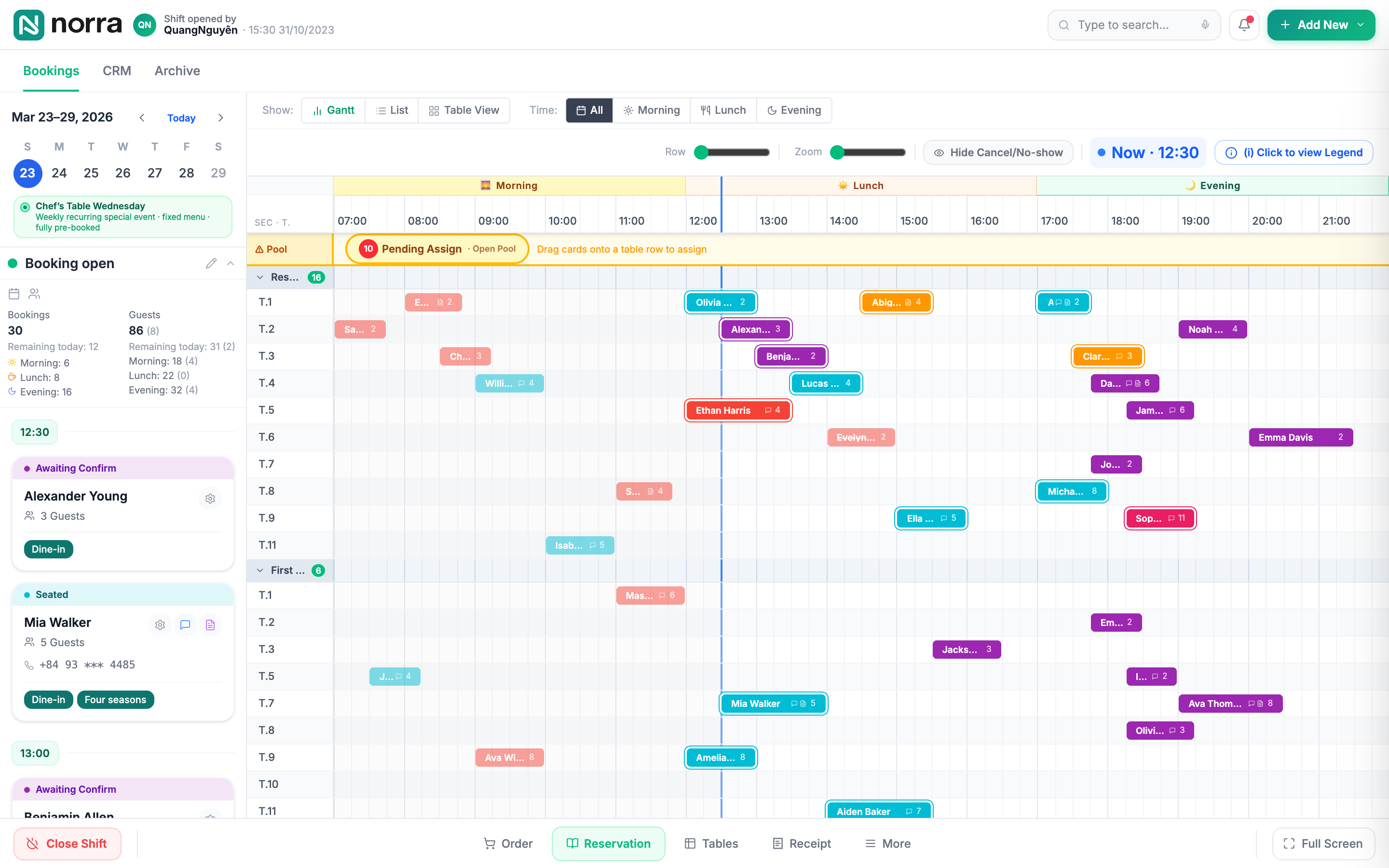
Screenshot of the Bookings screen in Gantt view: rows for tables T.1 to T.11 in the Restaurant and First floor sections, booking blocks in purple, orange, cyan and red placed along a 07:00 to 21:00 time axis, a blue line at the current time of 12:30, and a left sidebar with the week calendar and the day's bookings.
Start on the timeline: every table is a row, every booking a colour-coded block, and a blue line marks the current time.

Step 2: Take a booking or seat a walk-in
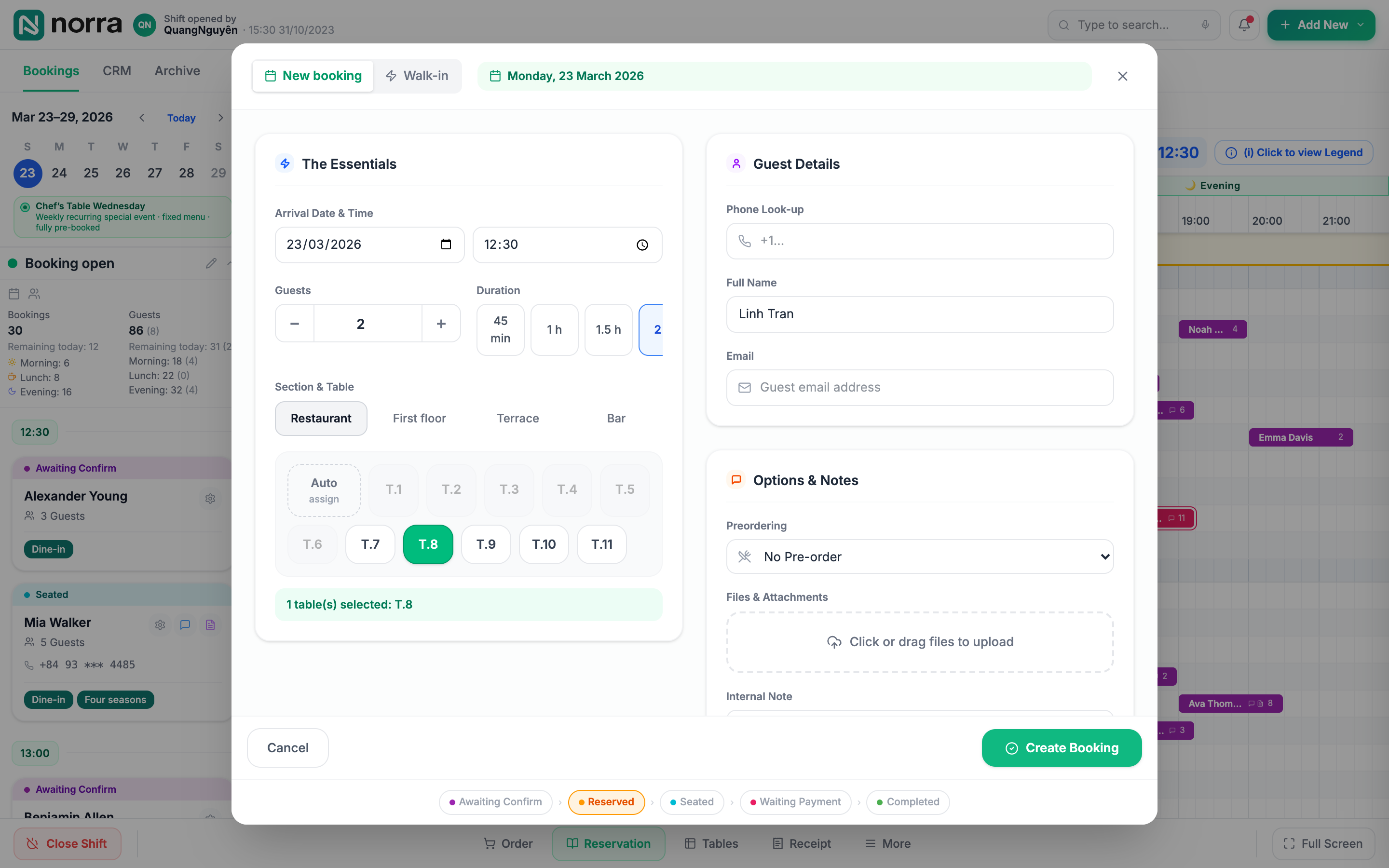
The New booking form open over the timeline: arrival date 23/03/2026 at 12:30, 2 guests, section Restaurant with table T.8 selected, the guest name Linh Tran typed in, a Create Booking button, and a status strip from Awaiting Confirm to Completed along the bottom.
Add New, then New booking, opens the form for arrival time, party size, duration, section, table and guest details; Walk-in seats a guest right now.

Step 3: Open a booking and move it through its status
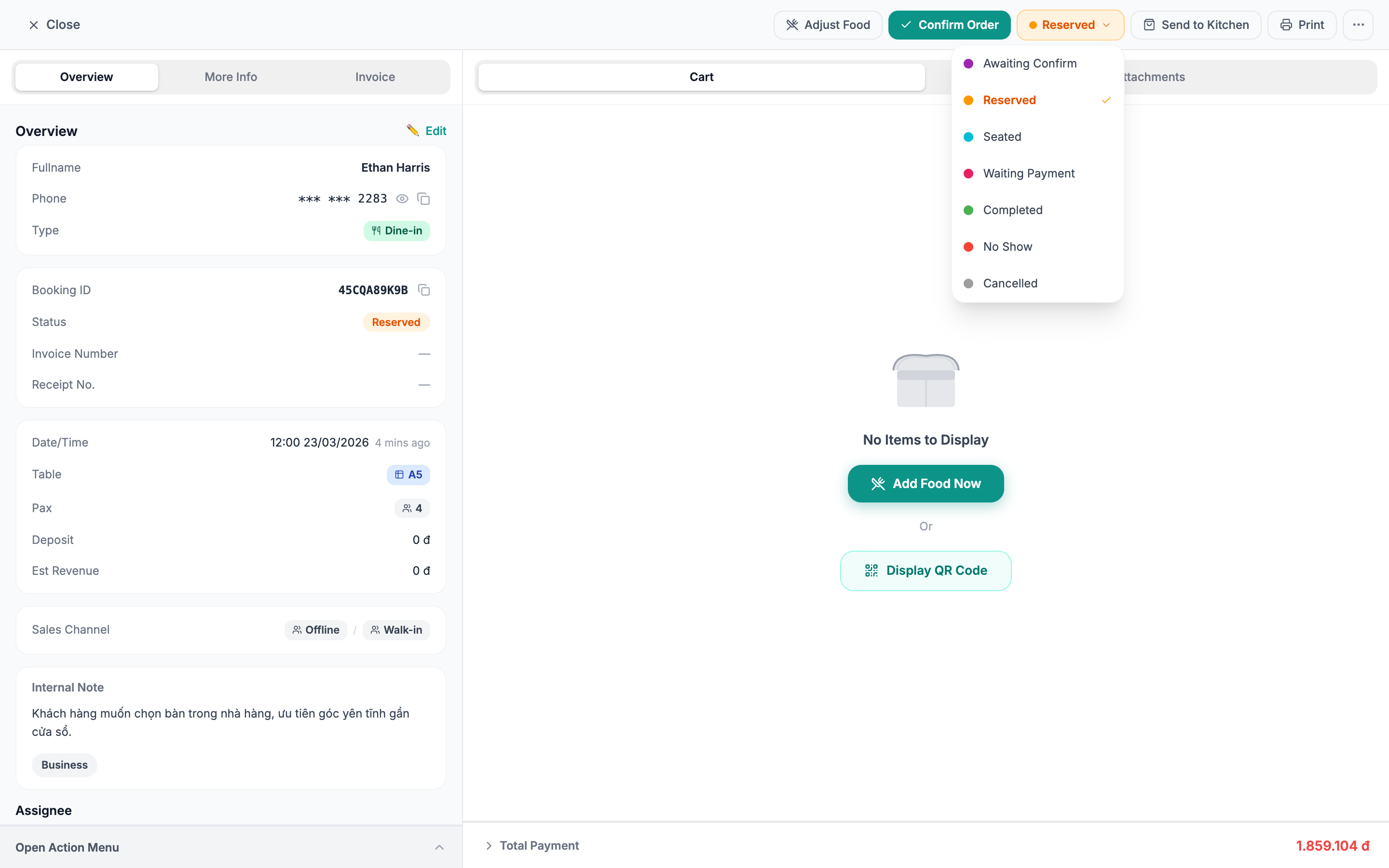
The booking detail screen for Ethan Harris, table A5, 4 guests, status Reserved. The status menu is open and lists Awaiting Confirm, Reserved, Seated, Waiting Payment, Completed, No Show and Cancelled. The order cart is empty and offers an Add Food Now button.
Click a booking to see its guest, table and order, then use the status menu to move it from Reserved to Seated, Waiting Payment and Completed.

Step 4: Build the order

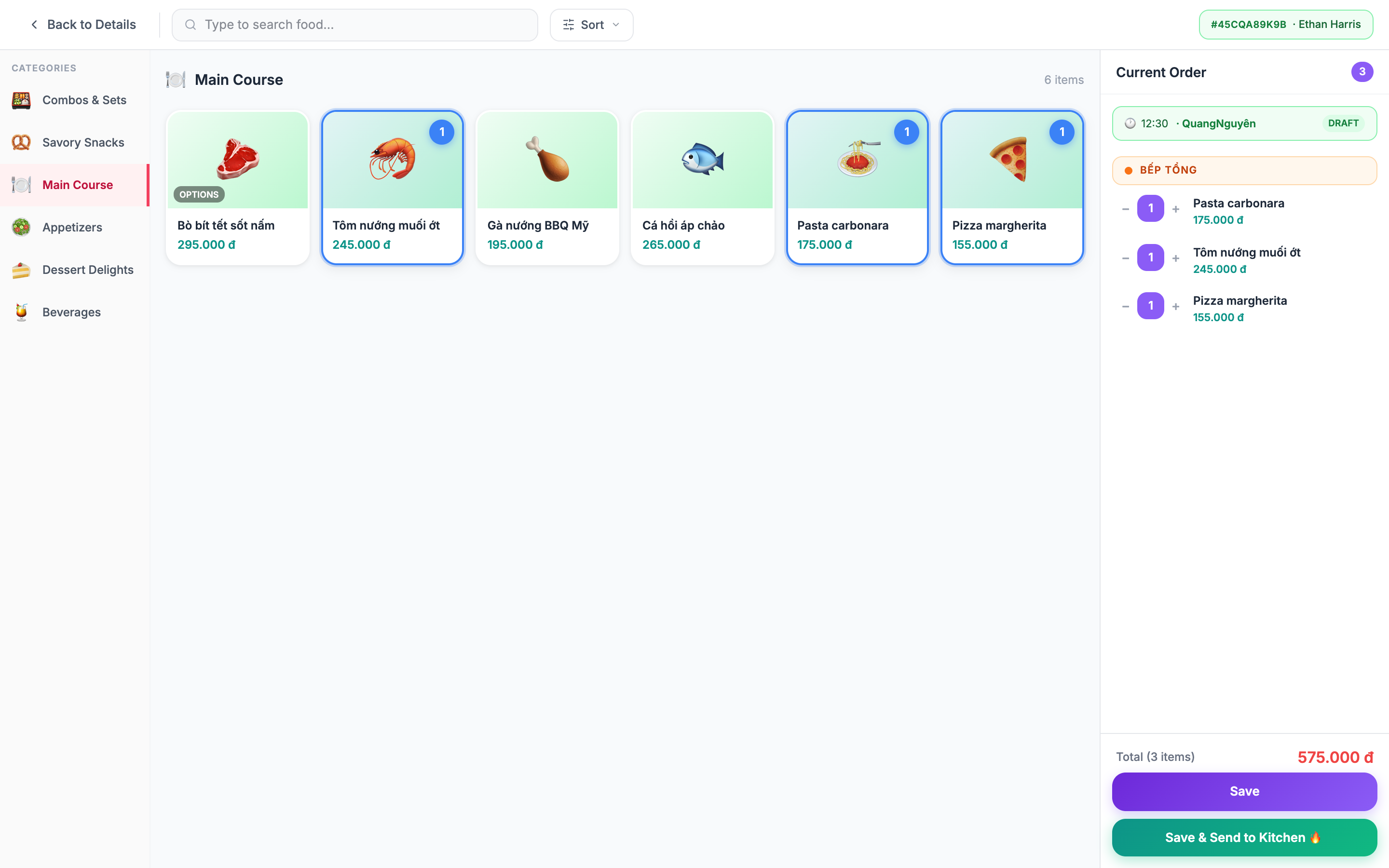
The food catalogue on the Main Course category, with six dishes. Three are selected (Tôm nướng muối ớt, Pasta carbonara and Pizza margherita) and listed in a Current Order panel with a total of 575.000 đ and Save and Save & Send to Kitchen buttons. Other categories include Combos & Sets, Appetizers, Dessert Delights and Beverages.
Add Food Now opens the menu: pick dishes or combos into the current order, then Save or Save & Send to Kitchen.

Step 5: Switch to the List view

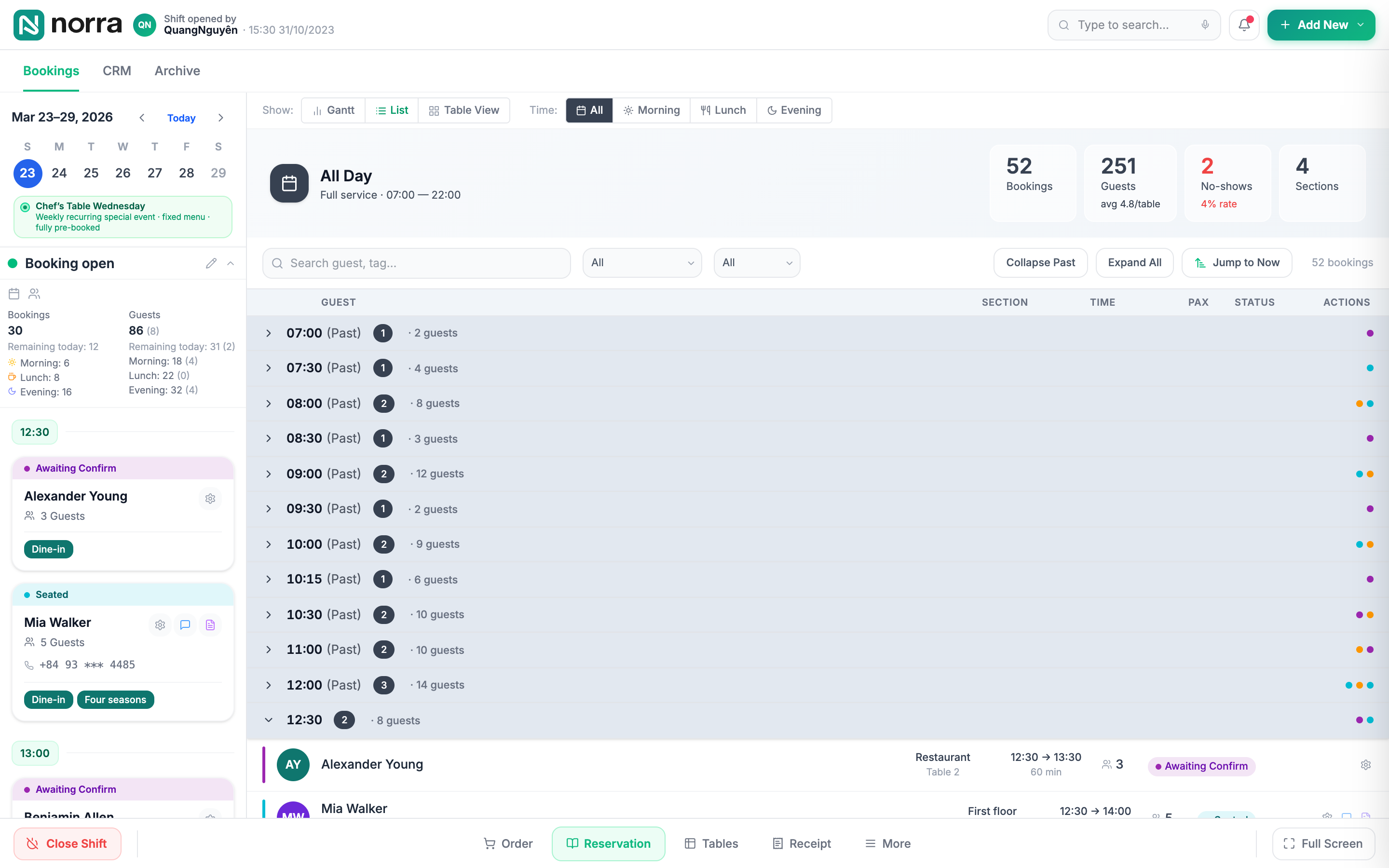
The List view of the day's bookings grouped by arrival time from 07:00, with summary tiles for bookings, guests, no-shows and sections, a search box, two filters, and the buttons Collapse Past, Expand All and Jump to Now. The 12:30 group is expanded and shows Alexander Young and Mia Walker.
The List view groups the day's bookings by arrival time, with search, filters and a Jump to Now shortcut.

Step 6: Or see the floor plan

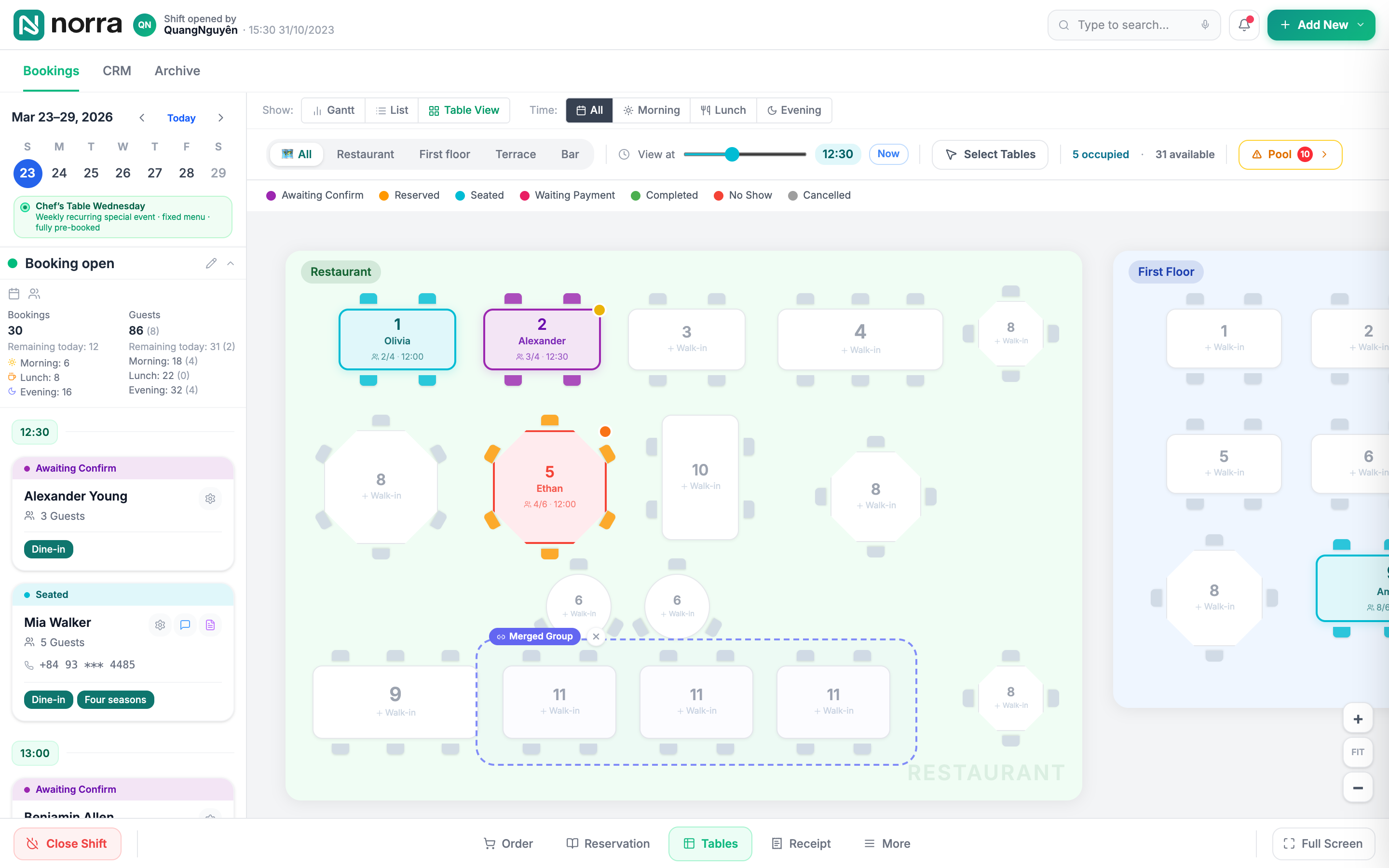
The Table View floor plan for the Restaurant and First Floor sections. Tables are drawn as shapes with their numbers; occupied tables are coloured by booking status, such as table 1 for Olivia in cyan and table 2 for Alexander in purple, and free tables read + Walk-in. A legend lists the seven statuses and a View at 12:30 time slider sits above the plan.
Table View shows the floor plan: occupied tables take the colour of their booking status, and a time slider shows any moment of the day.

Step 7: Look up the guest in the CRM

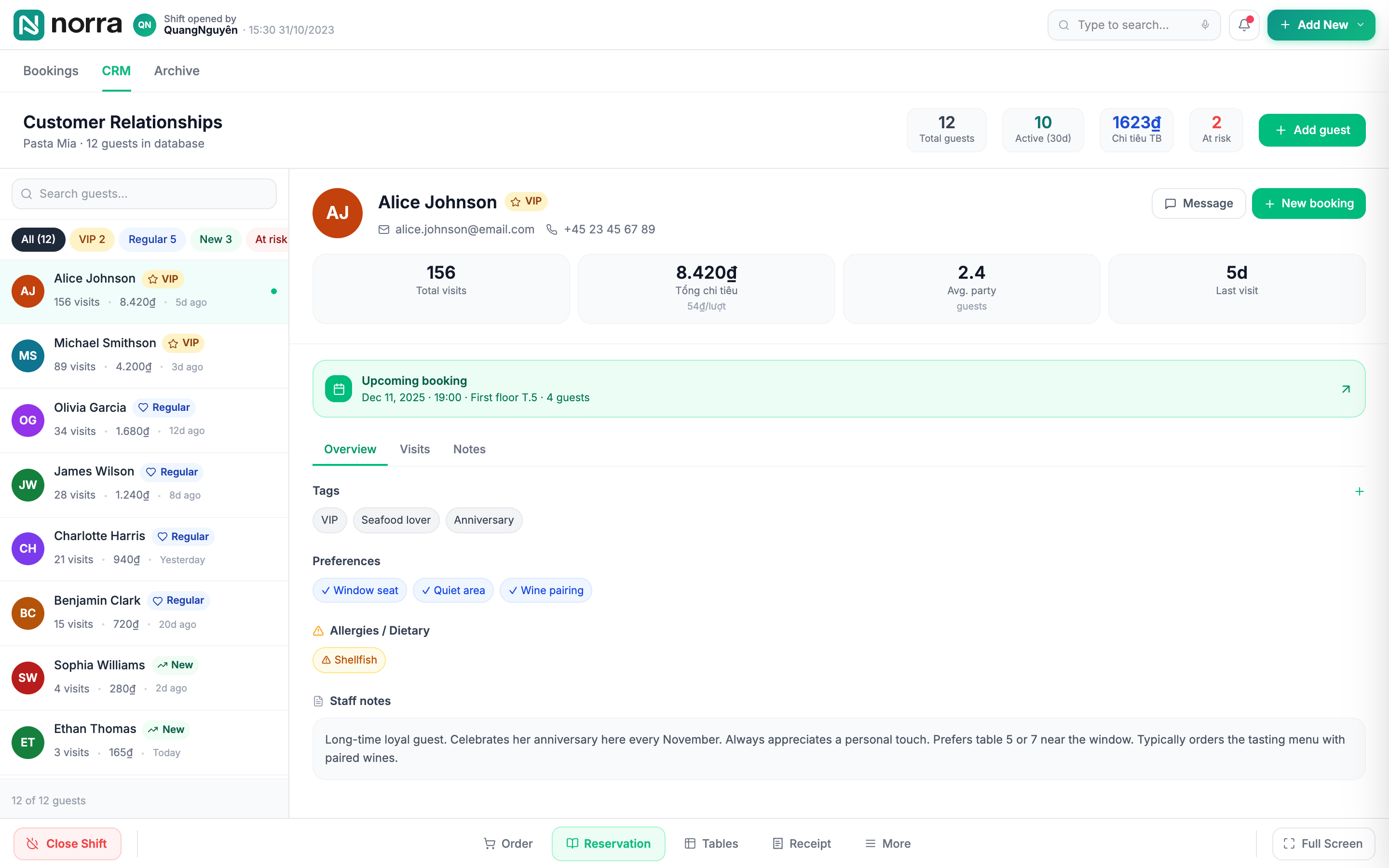
The CRM screen with a searchable guest list on the left and the profile of Alice Johnson, a VIP guest, on the right: 156 total visits, tags such as Seafood lover and Anniversary, preferences such as Window seat and Quiet area, a shellfish allergy, staff notes, and Message and New booking buttons.
The CRM tab keeps a profile for each guest: visits, spend, tags, preferences, allergies and staff notes.

Try it yourself

The live app is fully interactive: click a booking, add a walk-in, or switch views.

Open the live app